

Client on Linux manual
Wine manual
Section Wine manualBefore you start
Section Before you startFirst of all, please ensure your computer fits the requirements needed. Read the Client Manual page for further informations, or join us on Discord.
It is recommended to use 32-bit Wine prefix. But if you do not want to install 32-bit libs, or your distro ships with enforced WoW64 Wine mode, use 64-bit Wine prefix instead, although 64-bit Wine prefix introduces some instability, bugs and potential performance issues, but it’s still very playable.
Requirements
Section RequirementsThe hardware requirements for Multi Theft Auto: San Andreas are the same as on Windows. For software requirements, you need:
- Wine (get it on your package manager synaptic, apt, pacman, yum, etc.); follow instructions here if you’re using Ubuntu; (Install Wine Staging if you want better audio quality (experimental)).
- Winetricks (same as wine, get it on your package manager, or follow instructions here).
- (for 32-bit wine bottle only) 32-bit GPU mesa drivers for your GPU (for arch, use package lib32-mesa).
- (for 32-bit wine bottle only) 32-bit Audio drivers (for arch, follow instructions here).
- TLS libraries (for arch, use packages gnutls and (lib32-gnutls for 32-bit wine bottle only)).
- MTA:SA version 1.6 or newer (1.6 contains many improvements for Wine).
- Windows fonts (Download a ZIP archive with all three here and extract it).
- tahoma.ttf
- tahomabd.ttf
- verdana.ttf
Create new prefix
Section Create new prefixFirstly, we need to create a new prefix.
- Start Winetricks.
- Select
Create new prefix. - If you can, select 32-bit prefix. If you did not installed 32-bit libraries, or you have enforced WoW64, create 64-bit prefix.
- Write name of prefix, we will use mtasa.
Installing the game
Section Installing the gameWINEPREFIX=~/.local/share/wineprefixes/mtasa wine /mnt/setup.exe(Replace /mnt/setup.exe with path to installer’s setup.exe).
Complete the installation as usual, you can keep installation path as is. Afterwards, download the MTA installer from mtasa.com, and execute it inside our prefix with following command:
WINEPREFIX=~/.local/share/wineprefixes/mtasa wine ~/Downloads/mtasa-1.6.exe(As previously, change path to the installer).
Keep the options as is, only change is required if installation path of GTA is different from default, in that case, browse the path to the game.
Configuring prefix
Section Configuring prefixFirstly, we need to assure that our prefix have required fonts, mentioned in Requirements part. If you installed those fonts via package manager or into your Linux system, Wine should be able to pick them up automatically.
If that doesn’t work, manually install them in
~/.local/share/wineprefixes/mtasa/drive_c/windows/Fonts
If you installed Wine Staging, we can enable Environmental Audio Extensions (EAX), which is experimental feature.
- Open Winetricks
- Select mtasa prefix
- Select
Run winecfg - Go to
Stagingtab - Enable Environmental Audio Extensions (EAX)
For 64-bit prefix
Section For 64-bit prefixNormally for DirectX games, DirectX to OpenGL shim is used. Wine WoW64 have significant performance issues in games using OpenGL. Because of this, it is recommended to install DXVK through WineTricks. In the past, DXVK did not worked with MTA, although, so far it works quite nicely, although it’s less stable as on 32-bit bottle with internal DirectX to OpenGL shim.
- Open Winetricks
- Select mtasa prefix
- Select Install a Windows DLL or component
- Select
dxvk
Running the game
Section Running the gameOnce installed, double-clicking on the Desktop shortcut or menu item should work. If not, try in a terminal the following command:
WINEPREFIX=~/.local/share/wineprefixes/mtasa wine ~/.local/share/wineprefixes/mtasa/drive_c/Program\ Files/MTA\ San\ Andreas\ 1.6\Multi\ Theft\ Auto.exeKnown issues
Section Known issues- MTA isn’t starting (even with fonts installed).
*
- Try to start MTA:SA in a virtual desktop. Go to WineConfig, choose the tab
Graphicsand selectEmulate a virtual desktop. - Try to delete your
gta_sa.setfile which is located in theGTA San Andreas User Filesfolder, which can be found in your home directory. (Remember to create a copy, if you’re playing San Andreas in singleplayer). - Try to delete your MTA config file which is
MTA San Andreas 1.X/MTA/coreconfig.xml. (Also remember to create a copy, if you don’t want to lose your edited MTA configuration).
- Try to start MTA:SA in a virtual desktop. Go to WineConfig, choose the tab
SD #16 Errorwhen connecting to a server.No audio card detectedwhen launching either GTA:SA or MTA.- Using standard Full-screen mode on MTA might cause some occasional artifacts.
- Enabling DXVK might not break GTA:SA, but it can break MTA (NOTE: DXVK seems to work on latest versions of Wine, DXVK and MTA).
- Using Linux brings a higher-than-usual chance for game crashes due to various reasons (sometimes to do with resources & mods on individual servers).
- CEF crashes with some wine versions. Use workaround for this issue.
- Making the mistake of using a 64-bit prefix may specifically result in
SD #16 Errorwhen connecting to a server.- “libcef.dll” MTA crash upon joining servers, or during gameplay (when server uses CEF and your CEF web browser is enabled).
- Even higher chance for instability, lag issues and game crashes.
- and much more…
Specific issues with workarounds
Section Specific issues with workaroundsCrash when connecting
Section Crash when connectingSometimes the audio-server makes problems (could be related to PulseAudio), in this case, you’ve to go to WineConfig and choose the tab Audio, then deselect ALSA and select EsoundD.
Save the settings and restart MTA.
Crash in basswma.dll module while streaming audio
Section Crash in basswma.dll module while streaming audioInstall Windows Media Player 11. Before carrying this out, install Winetricks.
winetricks -q wmp11If that doesnt solve the issue, try an older version.
winetricks -q wmp10Special Detections (SD)
Section Special Detections (SD)This was already described above in general terms, of possible issues if you’re not using 32-bit prefix as is recommended. But for this Specific issues section we will go in-depth more regarding SD #21 kick from AC that commonly affects Linux/Wine users.
If you are using a 64-bit wine version/prefix you may have problems with Special Detections. If the server you are trying to connect keeps showing something like this

then you should make a 32 bit wine prefix (or bottle).
export WINEARCH=win32 WINEPREFIX=~/.winegtawinecfgLook at your Windows version and press OK to create the prefix. Now you have a 32-bit wine prefix on ~/.winegta.
Install GTA:SA and them MTA. After this, MTA and GTA have been installed within ~/.winegta prefix which is a 32-bit wine environment.
Serial Validation fails
Section Serial Validation failsOn some Linux systems, MTA may fail the serial validation step during first startup. This workaround might work if your machine uses only NVMe storage devices.
To check wether your system is affected, run
ls -l /dev/disk/by-idIf the output doesn’t contain any entry starting with ata- or scsi-, then this might be the cause of serial validation problems for you.
You can work around this issue by temporarily connecting any SATA-based storage device to your system. This includes:
- internal SATA HDDs/SSDs
- external USB hard drives that use USB-SATA bridge controllers
Once the device is connected, the system will expose the required ata-* or scsi-* identifiers.
While the device is still connected, start the MTA Server natively on Linux (not through Wine), then launch MTA client using your preferred way.
The serial validation should now succeed. After successful validation, the SATA device usually no longer needs to remain connected unless the Wine prefix is recreated or MTA requires serial verification again.
Font Artifacts
Section Font ArtifactsIf you see weird fonts artifacts then you need to add a new DLL override to your prefix/bottle.
- Open Wine configuration for your prefix/bottle, go to the
Librariestab. - Click on the New override for library dropdown and select
d3dx9_42. - Click on Edit… and select
Builtin (Wine)then OK.
Apply all the changes and you’re good to go.
(Make sure you have d3dx9_42 installed in your prefix).
winetricks d3dx9_42Closing words
Section Closing wordsTo avoid many of the roadblocks when it comes to Linux/Wine issues in general, just use 32-bit Prefix as suggested. However, if you still run into issues, you can inform yourself better about MTA’s Linux/Mac support levels and background by joining the MTA discord and going to #help-support channel or joining the MTA Development discord and going to #linux channel.
MTA supports Linux and macOS through Wine, Lutris, PlayOnLinux,etc on a best-effort basis. In a technical sense (about it functioning, if you got everything right) and not in an user support sense.
Due to the lack of user support and active development efforts to make it easier and more compatible than it already is, you will have to be an exceptionally experienced Wine user, as you are likely to run into a few issues that you’ll have to find a workaround for by yourself. Some workarounds are spread by other Wine users, are generic (on the internet) but we are simply not focussed or specialised enough on support for Wine to investigate all possible issues you can run into, and improve compatibility/provide them in user support. We only had a developer that was specialising into it and improving upon compatibility in the past (qaisjp, but they left).
We can tell that there’s enough Wine users that are experienced enough to make MTA run on their platforms, as we have metrics and see individual players using Wine through our systems. It remains possible for now, given that you don’t cause any misconfiguration (which causes the majority of issues that users run into) but that’s the thing - if we are not focussed on Wine support, we won’t dig into and establish what a ‘misconfiguration’ (in the sense of optimal compatibility with MTA) is.. you get the point right?
Either way, your best bet is to find another Wine user around here to help you, that knows his math (workarounds, optimal configuration).
At no point will official technical support reach the levels we provide for Windows users, and Quality assurance on these unsupported platforms does not exist. We apologize for the inconvenience, but at most times we deal with a lack of development manpower and specialized people for this.
Bottles/Soda manual
Section Bottles/Soda manualRequirements
Section Requirements- A Linux distribution supporting Bottles/Soda (e.g. Linux Mint). This guide uses Bazzite which is based on Fedora.
- Bottles with Soda runner (you can download from Flathub).
- A copy of GTA:SA.
- MTA Installer.
Installing Bottles/Soda
Section Installing Bottles/Soda- Install Bottles via your Distro package manager. For Bazzite, the Discover App Store provides the latest builds to install.
- After installing, launch Bottles and let it do some initialization on first startup.
- When it’s loaded up, click on the plus icon on the top left corner to create a new Bottle.
- Enter a name for the Bottle, this can be a generic name like “Gaming Stuff” since it won’t be limited to just GTA/MTA.
- Make sure to select Gaming option.
- Choose soda-9.0-1 (or a newer soda Runner if available).
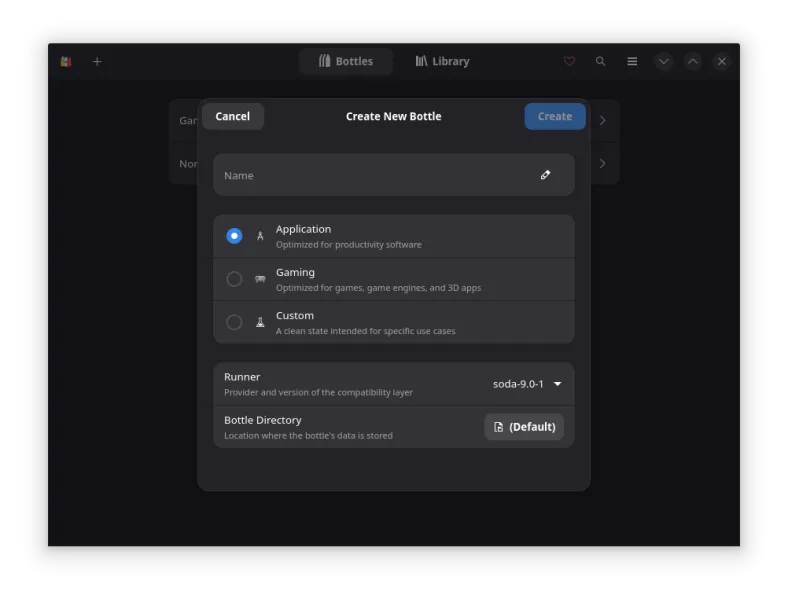
- Click on Create and let the setup create the new environment, this can take a few minutes.
- The Bottle should now appear in the list, click on it to open it.
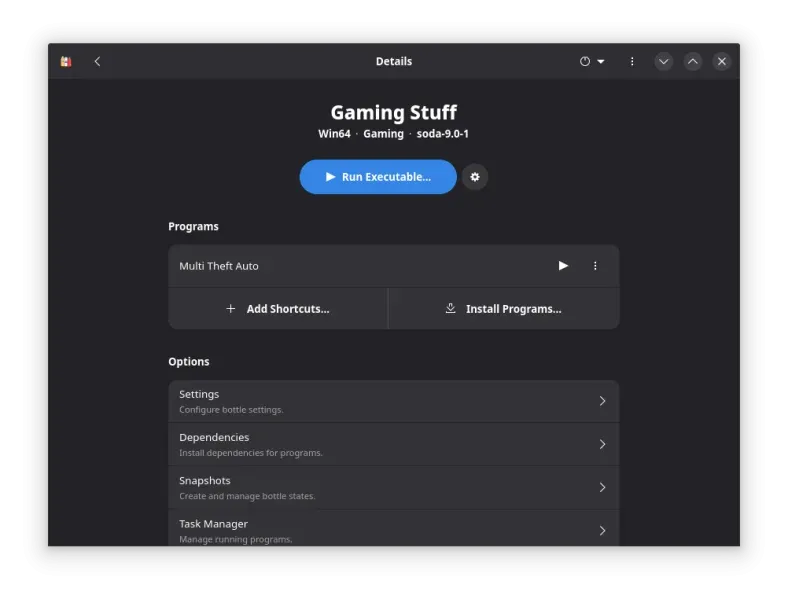
- Download the latest build of MTA:SA from the website, important note: Use the windows 10+ version, not the older win7/8.x one!
- After the installer got downloaded, click on the blue icon which says Run Executable… and select the MTA installer.
- Navigate through the MTA installer until you reach the point where you have to locate the GTA:SA installation.
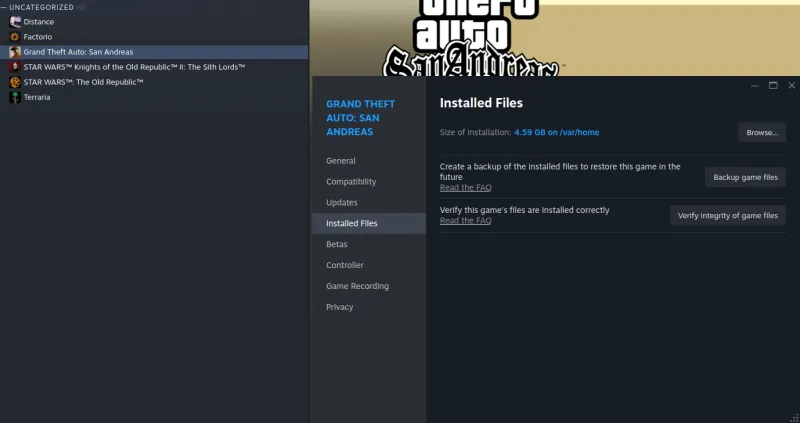
- Now you need a copy of GTA:SA, in this case I downloaded mine from Steam. Right click GTA:SA in your library, go to Properties, Installed Files and select Browse Files which opens the file explorer.
- Go back to the Bottles application, on top right side of window should be three vertical points as an icon, click on it and select Browse Files to open a new file explorer window with the Bottles drive_c directory.
- Copy the GTA folder from Steam location to
drive_c/Program Files (x86)folder.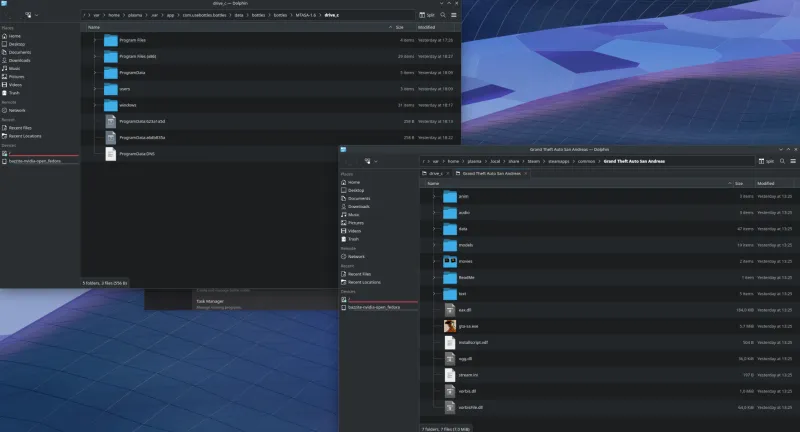
- After copying, go back to the MTA installer window, adjust the file path of the GTA installation to
C:\Program Files (x86)\Grand Theft Auto San Andreas\or whatever your GTA installation is called. - Before completing the installation, uncheck the
Launch MTAtickbox, we do NOT want to run MTA from the installer instance. - Inside your Bottles window, click on + Add Shortcuts… and find the Multi Theft Auto.exe, which should be located in
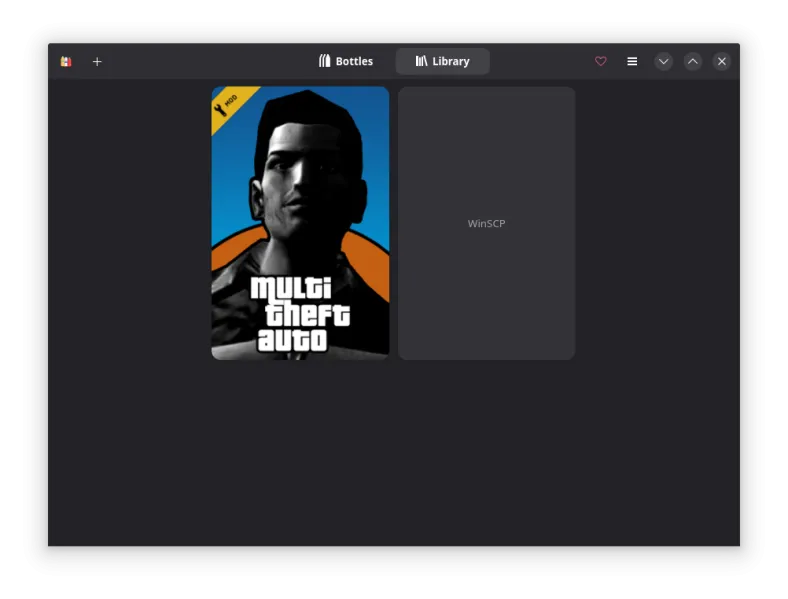
drive_c/Program Files (x86)/MTA San Andreas 1.6/. - You are good to go now, just click on the play icon. You can also add MTA to your Bottles library via three dots icon so it looks like this.
Manually updating MTA
Section Manually updating MTATo install a newer version of MTA manually, for example nightly, simply download the installer executable from nightly website.
- Go into your Bottle where you previously installed GTA and MTA.
- Click on the blue button on top that says Run executable… and select the new MTA installer you just downloaded.
- Simply click through the MTA installer to the end (GTA path and settings will be taken from the installed version) and remove the check box which says Run MTA:SA at the end.
- Click on MTA:SA shortcut to run the newly installed version.
Installing a second major version, for example 1.7 next to 1.6
Section Installing a second major version, for example 1.7 next to 1.6- Before installing a new major version, go inside your Bottle and rename the already existing MTA installation shortcut from “Multi Theft Auto” to “Multi Theft Auto 1.6”. Do the same for server shortcut if there is one.
- Download the 1.7 MTA installer and run it via the blue icon Run executable….
- Go through the installation setup as described above in Manually updating MTA above.
- After 1.7 got installed next to already existing 1.6 version, if the Bottle does not show a new shortcut for 1.7, add one manually. Rename the shortcut to “Multi Theft Auto 1.7” to avoid confusion.
Issues and solutions
Section Issues and solutions-
MTA fails to start because of missing fonts (Verdana, Tahoma, etc…) *
- Download the fonts verdana.ttf, tahoma.ttf, tahomabd.ttf and micross.ttf from the internet and put them in
drive_c/windows/Fonts/folder. - Alternatively go to your bottle, scroll down to Dependencies and click on allfonts to install all fonts supplied by Windows.
- Download the fonts verdana.ttf, tahoma.ttf, tahomabd.ttf and micross.ttf from the internet and put them in
-
MTA starts and brings up main menu but the application window constantly flickers.
- Try to navigate to
Settings -> Videotab and changeFullscreen modetoStandard.
- Try to navigate to
-
The CEF component does not load (NOT crashing), for example joining FFS Gaming server, you see no login/register panel (CEF based)
- Go to your MTA installation folder, go to MTA sub folder:
drive_c/Program Files (x86)/MTA San Andreas 1.6/MTA/and copy the following files to CEF folder inside that MTA folder:- CEFLauncher.exe
- CEFLauncher_DLL.dll
- cefweb.dll
- chrome_100_percent.pak
- chrome_200_percent.pak
- chrome_elf.dll
- icudtl.dat
- libcef.dll
- resources.pak
- v8_context_snapshot.bin
- Go to your MTA installation folder, go to MTA sub folder:
-
You did the previous step by moving CEF files manually and now installed a new version (nightly) of MTA and CEF completely crashes.
- Go to your MTA/CEF folder and delete the mentioned files above, then start MTA. If MTA reports an integrity failure upon start, run the MTA installer again.
-
Certain unicode characters do not render properly in chatbox and on DX elements and fall back to square/box characters. (But they render correctly on ingame console window or CEGUI elements)
- The issue is still being investigated…
-
DX fonts/texts are mashed together/cut off.
- This is an issue within Wine, see https://bugs.winehq.org/show_bug.cgi?id=59018
-
MTA does not start after installing/updating, no splash screen is shown, the Wine console says:
wine: Call from 7BF6CB38 to unimplemented function KERNEL32.dll.CopyFile2, abortingChange the runner to
caffe-9.7.
Tweaks and tinkering
Section Tweaks and tinkeringInside your Bottle, you can change various settings for potential tweaks etc. Recommended tweaks are: LatencyFlex, Discrete Graphics, Feral GameMode.
Lutris manual
Section Lutris manualRequirements
Section Requirements- Basic knowledge about the Wine Prefix.
- Lutris
- Lutris Wine Runner: latest version of proton-ge 8.x
- A prefix with GTA:SA V1.0 installation (Lutris can be used)
- MTA Installer
- During this tutorial, make sure to only use 32-bit prefix for MTA:SA, or else you will run into a
libcef.dllincompatibility issue and performance problems.
Installing MTA
Section Installing MTA- On Lutris, Add a Game (Make sure all prefixes for MTA/GTA are 64-bit, to avoid running into a plethora of issues.)
Game Info -> Name: Multi Theft AutoGame Options -> Wine Prefix: Same as the GTA:SA installation prefix.
Runner Options -> Wine Version: latest version of lutris 7.x (If for any reason it doesn’t work, try the latest confirmed working version: 7.2).Runner Options -> Enable DXVK/VKD3D:Disabled
- On Lutris, click on Multi Theft Auto and on the bottom bar, click on the Wine popup menu and select Winetricks.
- Select the default wineprefix -> Install a font -> Check Tahoma and Verdana.
- On Lutris, click on Multi Theft Auto and on the bottom bar, click on the Wine popup menu and select Run EXE inside Wine prefix.
- On the File Manager that appears, find and select the MTA Setup executable that you downloaded.
- Run the setup. Untick Install DirectX and Dedicated server. Before finishing setup, make sure you untick Run MTA.
- Open this folder in your MTA directory (eg.
{Wine Prefix path}/drive_c/Program Files (x86)/MTA San Andreas 1.5/MTA).- Open your terminal emulator here, run
Terminal window cp libcef.dll chrome_elf.dll icudtl.dat natives_blob.bin v8_context_snapshot.bin snapshot_blob.bin CEF
- Open your terminal emulator here, run
- On Lutris, right click Multi Theft Auto and select Configure.
Game Options -> Executable: Should point to Multi Theft Auto.exe inside the Wine Prefix path (eg.{Wine Prefix path}/drive_c/Program Files (x86)/MTA San Andreas 1.5/Multi Theft Auto.exe). - On Lutris, launch Multi Theft Auto. You should be greeted with an Error serial, but that’s actually a good sign, continue to solve it.
- In order to solve the Error serial, download and run the Linux Native MTA Server. After about a minute running the server, close it.
- On Lutris, launch Multi Theft Auto. MTA should launch without any issues, as well as successfully connect to servers.
Updating MTA
Section Updating MTAUpdating MTA through the client itself doesn’t work. You have to manually download the new version of MTA Installer, and install it by repeating Steps 2 and 3 on Installing MTA section.
Tips
Section Tips- This setup works with MTA 1.5.9 (tested)
- There are probably some Lutris Scripts available for installing MTA, but doing it manually should work better (tested)
- If you want you can ignore any Wine Mono and Wine Gecko installation prompts, as they are not needed for MTA (tested)
- Instead of using the Lutris one, the latest version of wine-tkg should work as well if you prefer.
- For audio streaming, installing wmp10 using Winetricks from Lutris might help (untested)